
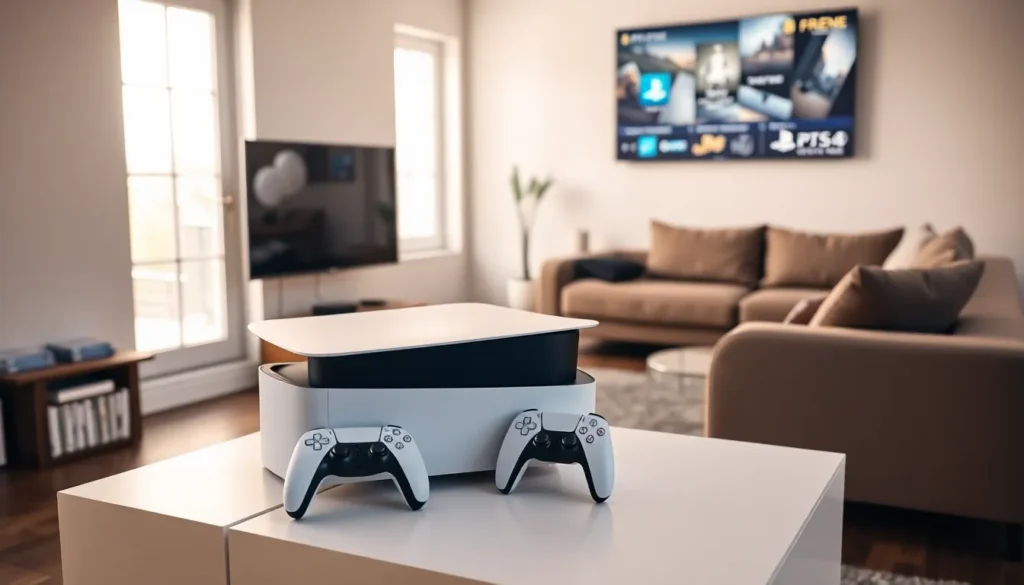

This PlayStation guide covers everything new users need to start gaming. Whether someone just unboxed their first console or is considering which model to buy, this resource breaks down each step clearly. From choosing the right hardware to building a solid game library, this PlayStation guide provides practical answers without the fluff. Readers will learn how to set up their system, explore key features, and get the most out of their investment. Let’s get started.
Table of Contents
ToggleKey Takeaways
- This PlayStation guide helps new users choose between the standard PS5, Digital Edition, or budget-friendly PS4 based on their gaming needs and budget.
- Setting up a PlayStation takes 15–30 minutes and includes creating a free PSN account, which unlocks online features, purchases, and cloud saves.
- PlayStation Plus offers three subscription tiers with benefits like online multiplayer, monthly free games, and access to a catalog of hundreds of titles.
- Rest Mode and Remote Play are essential features that allow convenient downloads and gaming on phones, tablets, or PCs away from your TV.
- Build a strong game library by waiting for sales, checking PS Plus monthly offerings, and exploring free-to-play titles like Fortnite and Apex Legends.
Choosing the Right PlayStation Console
Selecting a PlayStation console depends on budget, gaming habits, and display setup. Sony currently offers the PlayStation 5 in two versions: the standard edition with a disc drive and the Digital Edition without one. Both deliver identical performance, so the choice comes down to whether physical games matter to the buyer.
The standard PS5 costs more upfront but allows users to purchase used discs, borrow games from friends, and watch Blu-ray movies. The Digital Edition saves money initially, though all game purchases must go through the PlayStation Store.
For budget-conscious gamers, the PlayStation 4 remains a solid option. It supports thousands of titles and costs significantly less than newer hardware. But, it won’t play PS5-exclusive games, and Sony’s focus has shifted to next-gen development.
This PlayStation guide recommends considering these factors:
- Game format preference: Physical collectors should pick the standard PS5.
- Budget: The PS4 or PS5 Digital Edition offers savings.
- Future-proofing: The PS5 handles upcoming releases better than older hardware.
- 4K gaming: Only the PS5 supports native 4K output at higher frame rates.
Those who want the complete experience should choose the standard PlayStation 5. It offers flexibility and longevity that justify the higher price.
Setting Up Your PlayStation for the First Time
Setting up a PlayStation takes about 15 to 30 minutes. The process involves connecting cables, creating an account, and downloading system updates.
Start by connecting the HDMI cable from the console to a TV or monitor. Plug in the power cord and press the power button. The system will boot up and display on-screen instructions.
Next, connect a DualSense (PS5) or DualShock (PS4) controller via USB cable. The console will prompt users to pair the controller. Once connected, the setup wizard begins.
Creating a PlayStation Network (PSN) account is essential. This free account enables online features, game purchases, and cloud saves. Users need a valid email address and must create a unique username called a PSN ID. This PlayStation guide suggests choosing a PSN ID carefully, changing it later is possible but comes with limitations.
After account creation, the console downloads the latest system software. This update can take several minutes depending on internet speed. Don’t skip this step, as updates include security patches and new features.
Finally, the system asks about data sharing and privacy preferences. Users can customize these settings based on their comfort level. The initial setup concludes with a brief tutorial covering basic controls and interface elements.
Navigating the PlayStation Interface
The PlayStation interface uses a card-based layout. Games and apps appear as tiles on the home screen. The PS5 uses a redesigned Control Center, while the PS4 features the familiar XMB-style menu.
On PS5, pressing the PlayStation button opens the Control Center at the bottom of the screen. From here, users access recent games, downloads, friends lists, and quick settings. The main home screen displays game tiles with activity cards that show objectives, news, and joinable multiplayer sessions.
The Game Library stores all purchased and installed titles. Users can sort games by name, install status, or purchase date. This PlayStation guide recommends organizing games into folders for easier access, especially for those with large collections.
The Settings menu lives in the top-right corner of the home screen. A gear icon indicates its location. Here, users adjust everything from display output to parental controls.
The PS4 interface works similarly but arranges content horizontally. Games appear in a single row with recently played titles on the left. The function menu sits at the top and provides access to notifications, friends, trophies, and settings.
Both consoles support voice commands through a connected microphone. Users can launch games, capture screenshots, and control playback using voice input. This feature saves time but requires enabling in the settings menu first.
Essential Features and Settings
PlayStation consoles include features that enhance gameplay, social interaction, and system performance. Understanding these options helps users customize their experience.
Rest Mode keeps the console in a low-power state while charging controllers and downloading updates. This PlayStation guide recommends enabling Rest Mode for convenient overnight downloads.
PlayStation Plus is Sony’s premium subscription service. It provides online multiplayer access, monthly free games, cloud storage for saves, and exclusive discounts. Three tiers exist: Essential, Extra, and Premium. Each tier adds more benefits at a higher cost.
Remote Play lets users stream their PlayStation to a phone, tablet, PC, or another PlayStation console. This feature works over Wi-Fi and enables gaming away from the TV. Performance depends on internet speed and network stability.
Share Play allows friends to watch gameplay live or even take control of a game remotely. This works through party chat and requires both users to have active PSN accounts.
Parental Controls restrict content, spending, and playtime for younger users. Parents can create sub-accounts for children and set age-appropriate limits.
Key settings to adjust include:
- HDR and display calibration: Match output to the TV’s capabilities.
- Audio output: Select headphones, TV speakers, or soundbar.
- Notifications: Reduce distractions during gameplay.
- Storage management: Monitor available space and delete unused games.
Spending a few minutes in the settings menu improves the overall experience significantly.
Building Your Game Library
A strong game library makes the PlayStation experience worthwhile. Several options exist for acquiring games, each with distinct advantages.
The PlayStation Store offers digital downloads directly to the console. Sales happen regularly, with major discounts during seasonal events. Digital games launch at midnight on release day and don’t require disc swapping.
Physical discs remain popular among collectors. They often drop in price faster than digital versions and can be resold or traded. Retailers like GameStop, Amazon, and Best Buy stock new and used titles.
PlayStation Plus subscribers receive monthly games at no extra cost. The Extra and Premium tiers include access to a catalog of hundreds of titles. This PlayStation guide considers PS Plus Extra a strong value for players who enjoy variety.
Free-to-play games require no purchase. Popular options include Fortnite, Apex Legends, Genshin Impact, and Rocket League. These games generate revenue through optional cosmetic purchases.
When building a library, consider these strategies:
- Wait for sales on single-player games that don’t require day-one access.
- Check PS Plus monthly offerings before buying a game outright.
- Use wish lists to track price drops on the PlayStation Store.
- Explore indie titles, they often cost less and deliver memorable experiences.
A balanced library includes different genres: action, adventure, sports, puzzle, and multiplayer games. This variety prevents burnout and keeps gaming sessions fresh.


